Built this over few weekends, an MCP server that connects AI agents (Claude, Codex etc) directly to your local Mathematica.
It lets the agent run Wolfram Language code, manipulate frontend notebooks, export plots, and query Wolfram Alpha(82 tools total). You don't even need to know every Mathematica command, as the agent can look up functions and documentation on its own. Watch it in action: https://youtu.be/TjGSkvVyc1Y
Would love for people in this community to give it a try. Your feedback would help me keep improving it.
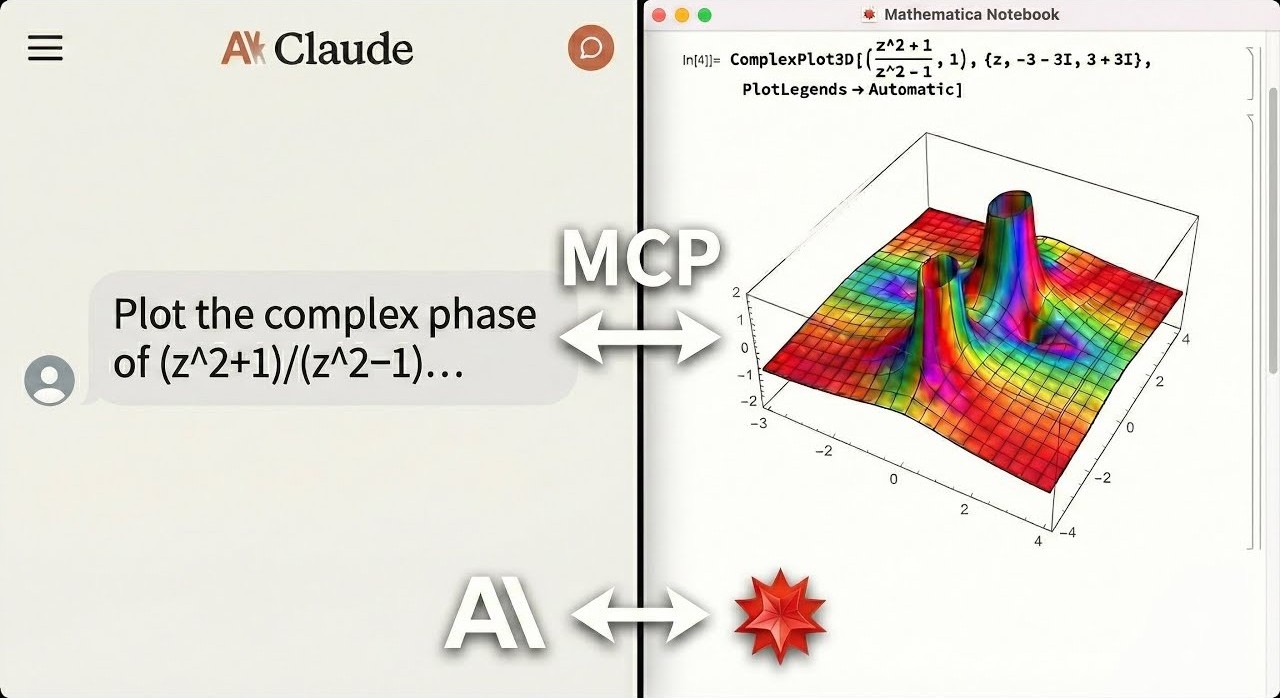
An AI agent solving math, generating plots, and controlling a live Mathematica notebook. Errors are returned directly to the agent, no copy-pasting notebook output back into chat.
Documentation
Why This Exists
LLMs can write Mathematica code, but they can't run it, verify it, or interact with live notebooks. This MCP server bridges that gap:
- Live notebook control: create, edit, evaluate, and screenshot Mathematica notebooks directly from your AI agent
- Symbolic + numeric + visual in one MCP: ~82 tools covering algebra, calculus, plotting, data import/export, Wolfram Alpha, and interactive UIs
- Agent-optimized: compact response shaping, session state tools, and computation journaling designed for how LLM agents actually work
- Error-aware execution: Mathematica errors and warnings are returned directly to the agent, so it can debug without you manually copying notebook output back into chat
- Local and private: core execution runs on your machine — optional tools like
wolfram_alpha and repository search contact Wolfram's cloud services when invoked
Ask your agent for a derivation, a 3D plot, a notebook edit, or a verification step, and it can actually do it.
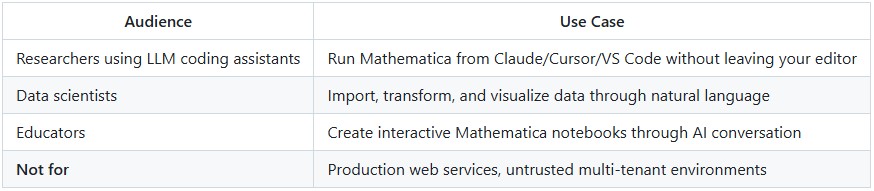
Who This Is For
What You Can Ask For
"Integrate x^2 sin(x) from 0 to pi, then verify the result."
execute_code("Integrate[x^2 Sin[x], {x, 0, Pi}]")  =>  -4 + Pi^2
verify_derivation(steps=["Integrate[...", "-4 + Pi^2"])  =>  All steps valid
"Plot the sombrero function in a new notebook."
create_notebook(title="Sombrero")
execute_code("Plot3D[Sinc[Sqrt[x^2+y^2]], {x,-4,4}, {y,-4,4}]", style="notebook")
=> [3D surface plot rendered in live notebook]
"Interactive: slider for Sin[n x]"
execute_code("Manipulate[Plot[Sin[n x],{x,0,2Pi}],{n,1,10}]", style="interactive")
=> [Live slider UI in Mathematica frontend]
Beyond these: data import/export (hundreds of formats), Wolfram Alpha queries, notebook reading/analysis, symbolic debugging, and more. See the Technical Reference for the full tool list.
How It Compares
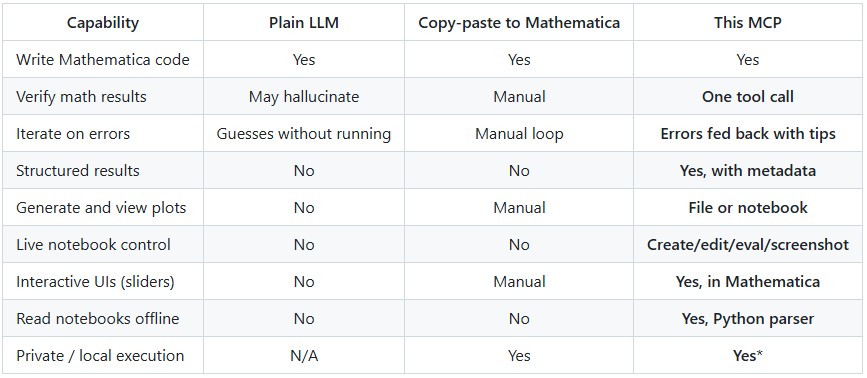
*Core computation runs locally. Optional tools (wolfram_alpha, repository search) contact Wolfram cloud services when invoked.
Quick Start
From install to first working notebook plot in under 2 minutes.
Prerequisites
1- Mathematica 14.0+ with wolframscript in your PATH
- Download Mathematica
- macOS: Add to ~/.zshrc: export PATH="/Applications/Mathematica.app/Contents/MacOS:$PATH"
2- uv package manager
curl -LsSf https://astral.sh/uv/install.sh | sh
One-Command Setup
# For Claude Desktop
uvx mathematica-mcp-full setup claude-desktop

# For Cursor
uvx mathematica-mcp-full setup cursor

# For VS Code (requires GitHub Copilot Chat extension)
uvx mathematica-mcp-full setup vscode

# For OpenAI Codex CLI
uvx mathematica-mcp-full setup codex

# For Google Gemini CLI
uvx mathematica-mcp-full setup gemini

# For Claude Code CLI
uvx mathematica-mcp-full setup claude-code

# Optional: select a tool profile (default is "full")
uvx mathematica-mcp-full setup claude-desktop --profile notebook
Then restart Mathematica and your editor. Done!
VS Code: Alternative setup via Command Palette
Prerequisite: GitHub Copilot Chat extension must be installed - MCP support is built into Copilot.
- Press
Cmd+Shift+P (Mac) / Ctrl+Shift+P (Windows)
- Type "MCP" -> Select "MCP: Add Server"
- Choose "Command (stdio)": not "pip"
- Enter command:
uvx
- Enter args:
mathematica-mcp-full
- Name it:
mathematica
- Choose scope: Workspace or User
Alternative: Interactive Installer
bash <(curl -sSL https://raw.githubusercontent.com/AbhiRawat4841/mathematica-mcp/main/install.sh)
Verify Installation
uvx mathematica-mcp-full doctor
Tip: If you encounter errors after updating, clear the cache: bash uv cache clean mathematica-mcp-full && uvx mathematica-mcp-full setup <client>
Execution Styles
Control where results appear with natural language or the style parameter:

If you don't include a keyword, the default depends on your tool profile.
Tool Profiles
Choose how many tools to expose:
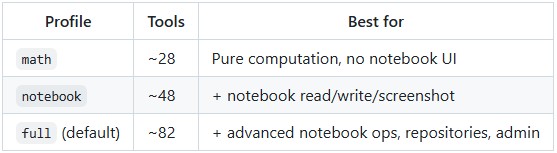
Pass --profile during setup or set MATHEMATICA_PROFILE env var.
Built for Agent Workflows
The server is designed for how LLM agents actually work: long conversations with context limits, intermittent failures, and token budgets:
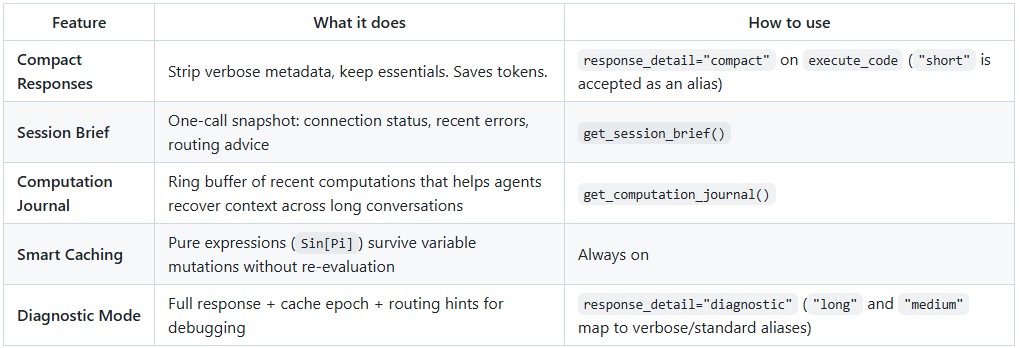
Notebook execution is strict about the requested target: if notebook transport fails, the server returns a notebook error instead of silently rerunning the work through CLI fallback.
Routing Intelligence (opt-in)
For power users, the server can learn from transport outcomes and adapt:
# Observe mode: collect stats, no behavior change
export MATHEMATICA_ROUTING_MEMORY=observe

# Advise mode: + routing hints + enables adaptive routing
export MATHEMATICA_ROUTING_MEMORY=advise
export MATHEMATICA_ROUTING_ACTION=compute_cli_skip  # optional: skip failing transport
The adaptive routing circuit-breaker automatically skips persistently failing compute CLI transport with half-open probe recovery. See the Technical Reference for details.
Privacy: Routing memory stores only aggregate counters; the in-memory journal stores short code/output previews (not persisted). Notebook extraction results are cached to ~/.cache/mathematica-mcp/notebooks/ with mtime-based invalidation; delete the directory to clear the cache.
Manual Installation
For full details, troubleshooting, and advanced configuration, see the Installation Guide.
Quick manual setup
Clone & Install:
git clone https://github.com/AbhiRawat4841/mathematica-mcp.git
cd mathematica-mcp
uv sync
Install Mathematica Addon:
wolframscript -file addon/install.wl
Restart Mathematica after this step.
Configure your editor: add the MCP server to your client's config file. See the Installation Guide for Claude Desktop, Cursor, VS Code, and other client configs.
License
MIT License